The question isn’t whether this is happening, but rather whether it’s good a thing that it is.
Categorized: Articles
How we gave colors names and it messed with our brains
A fascinating two part article on color and how our perception of it is affected by language and culture.
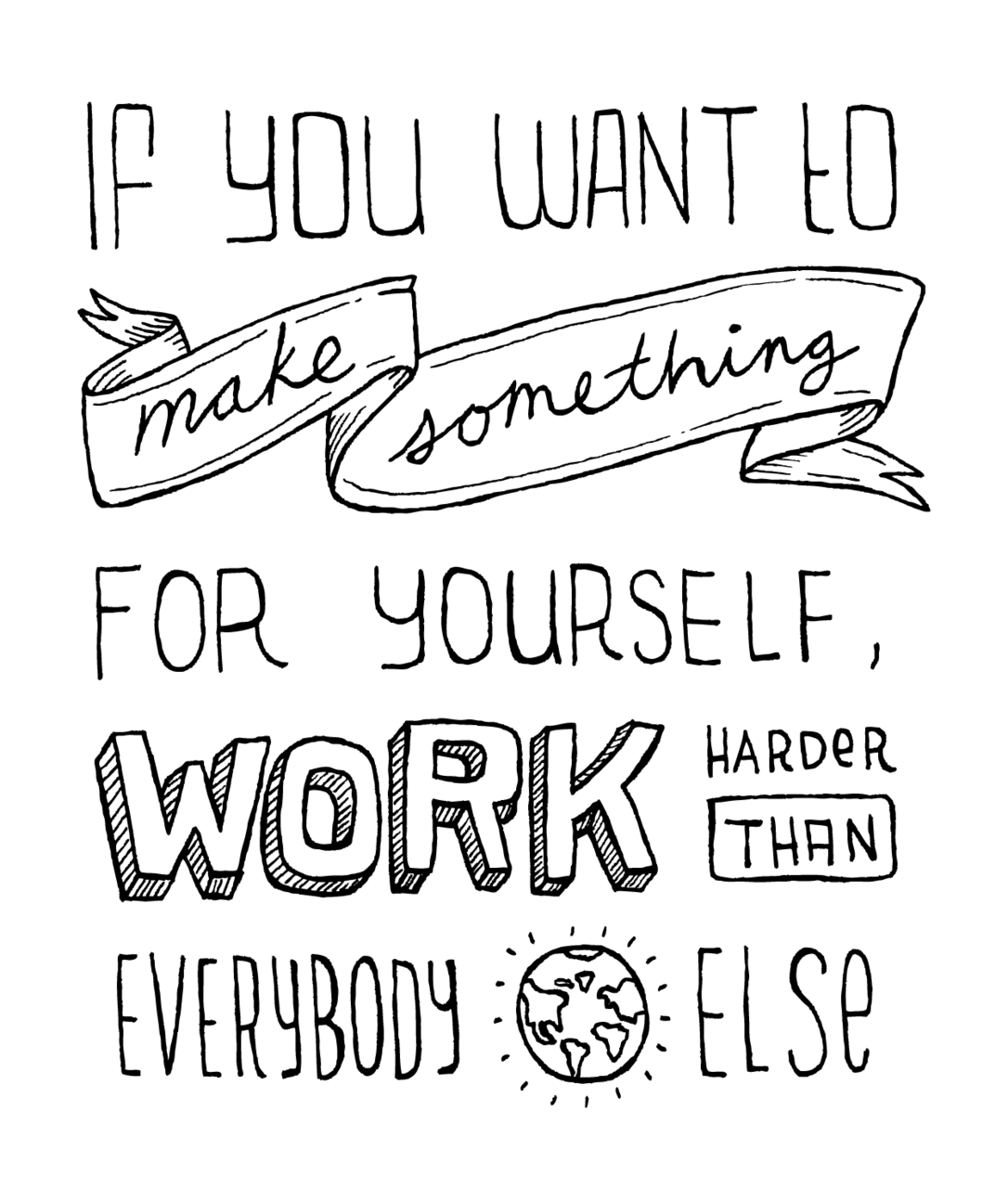
Make something
Tabs with round out borders
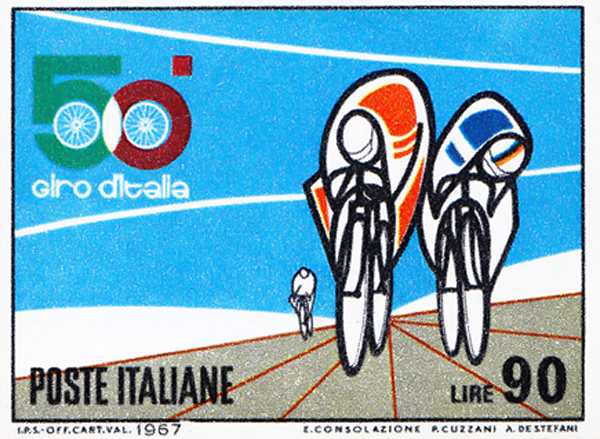
Bike Stamps from Italy
Choosing device sizes to support for your responsive designs
The bottom line: don’t.
A Responsive Design Approach for Complex, Multicolumn Data Tables:
Managing Social Buttons on a Responsive Site
A smart approach to avoid serving social media scripts to mobile browsers.
Using LESS with CodeKit to compile multiple CSS files
For the past month or so I have been using LESS in combination with CodeKit to author my CSS.
LESS adds a lot features that CSS lacks. It also allows structuring CSS in ways that aren’t practical for a production website or application and I think it’s going to play a large role in the future of web design. CodeKit makes working with LESS a breeze. CodeKit is also compatible with Sass, Stylus, CoffeeScript and Haml (if you’re into that level of abstraction).
LESS and CodeKit for mobile-first, responsive web design
There are two main approaches to building mobile-first, responsive websites. One method is to use multiple linked stylesheets with media queries called directly in the markup. Another is to use a single stylesheet with multiple media queries within it. (Of course with both of these approaches you will need to use a polyfill for old versions of IE or provide a link to a separate IE stylesheet). I prefer the using a single stylesheet because I want to keep HTTP requests to a minimum so our websites are as fast as possible. The drawback to using such an approach is that you may end up having a rather large CSS file which can make editing and debugging more difficult than it needs to be.
Having your cake and eating it too – Compiling multiple LESS files into one with CodeKit
Let’s start by creating a default mobile stylesheet. Since I primarily work with WordPress, I call this file style.less, and keep it in a folder called “less”. If you’re using WordPress, you need to compile it to style.css in the main template directory, otherwise you can place these files wherever you would like.
From within this file, we can import some helper LESS files (also kept in the less directory) near the top of the document. After my requisite WordPress stylesheet header, I have something similar to the following:
@import 'mixins.less'; // Mixins to use in our other LESS files
@import 'normalize.less'; // A reset stylesheet
Mixins are basically predefined styles that you can drop in anywhere in your LESS file. If you’re often using vendor prefixed declarations, they will save you loads of time. Dmitry Fadeyev was nice enough to share his set of mixins, but you can easily make your own. Andy Clarke has also recently released a set of mixins as part of his 320 and Up HTML5 Boilerplate extension which I highly recommend checking out.
The normalize file is basically a CSS reset and you can read more about Normalize.css here. Basically these are files I’m not going to change often and don’t want to be part of my main CSS files. It’s also important to note that if you’re coding a WordPress site, you will need to use LESS rather than CSS as the file extension even if you’re not using any LESS code. This is because CodeKit imports these files above your WordPress stylesheet header which will break your theme. It’s still in beta, so this may be fixed in the future.
After you have your helper LESS files imported, you can begin coding your mobile-first style after these @import calls. When your site is looking good on mobile and you’re ready to work your way up, simply import your media queries like so:
@import url("480.less");
@import url("600.less");
@import url("768.less");
@import url("992.less");
@import url("1382.less");
@import url("2x.less");
From within each LESS file, make your media query calls. In the 480.less file, you would want to put the following to target browsers with a minimum width of 480 pixels :
@media only screen and (min-width: 480px) {
body {
// Put your styles for the body element here
}
} /* end 480 */
Now every time you save a LESS file, CodeKit will compile it all into one CSS file. You now have the flexibility of authoring multiple CSS (LESS) files while serving just one CSS file to your server.
Mobile Only Web Users
Yet another reason to take a mobile first approach when designing websites.
An HTML5-powered demo of the Windows phone user interface:
Hiding the iPhone URL bar
It’s a common practice to hide the URL bar for iOS and android devices. The reason for this is pretty straight forward: it takes up screen real estate.

This is one very common approach that’s being used now:
addEventListener("load", function() { setTimeout(hideURLbar, 0); }, false);
  function hideURLbar(){
  window.scrollTo(0,1);
}
The above javascript simply scrolls the page to the top and in the process the iOS URL bar is scrolled off of the screen after the page loads. This works great, but it has a big usability problem that I ran into this weekend after some mobile web browsing over 2g. Namely, if you’ve loaded up a page that uses this function, and you then begin scrolling down the page to read or browse through the loaded content, you’re abruptly taken back to the top of the page when the function fires.
I’ve noticed this behavior on sites like TechCrunch and engadget, and it’s really annoying. I’m guilty myself of adding this code to websites myself, but will be avoiding it in the future. This isn’t something you would need to worry about if you load all of the content after the JS executes, but unfortunately that’s generally not the quickest way to load the page. I’d be interested in hearing any solutions to this problem, but for now I’ll just have to be content with a URL bar.
HTML5 Weekly
Stay up to date on HTML5 news: html5weekly
Seward Alaska

HTML5 BOILERPLATE V2
A great starting point for your next project.